 Pace
Pace


Broadcast your league like F1 TV. Give the commentator a booth.
One browser source in OBS — 127.0.0.1:8086/broadcast — and your F1 24/25 league stream gets an F1 TV–style overlay: the animated timing tower of all 22 cars, battles, pit stops, strategy, weather — drawn from the game's own telemetry. The Commentary Booth lets the commentator put any of it on air with a click or a key. Free, no SimHub, no plugin.
The booth puts a card on air — the overlay obeys. Booth and overlay of the same Pacedex, on the built-in demo race (27 s, no sound).Every number comes from the game's telemetry — nothing is made up.
Who needs what
The streamer
One PC in the lobby — as a spectator is fine — with the game's UDP telemetry on. Pacedex captures all 22 cars and serves the overlay to OBS on that PC. Set it up without the game: the sample race fills every widget.
The commentator, in the lobby
Joins the lobby as a spectator with the game open and opens the Booth tab in Pacedex (or /cabine on a tablet). No code, no internet needed: what they click goes straight to the overlay on this PC.
The commentator, from another city
Opens pacedex.com/booth in a browser with the room code and puts pacedex.com/live/<code> in their own OBS. Needs at least one Pacedex in the lobby sending its telemetry to the room.
The drivers
Position, gaps, sectors, pits and penalties are always public. Drivers who do run Pacedex enrich everyone's tower with their car's deep telemetry and get a PD badge — automatically, in the same lobby (on by default; off in Settings).
The Commentary Booth
The commentator's screen. Every click or key is a direction the overlay obeys — locally on the same PC, or through the room for a remote booth.
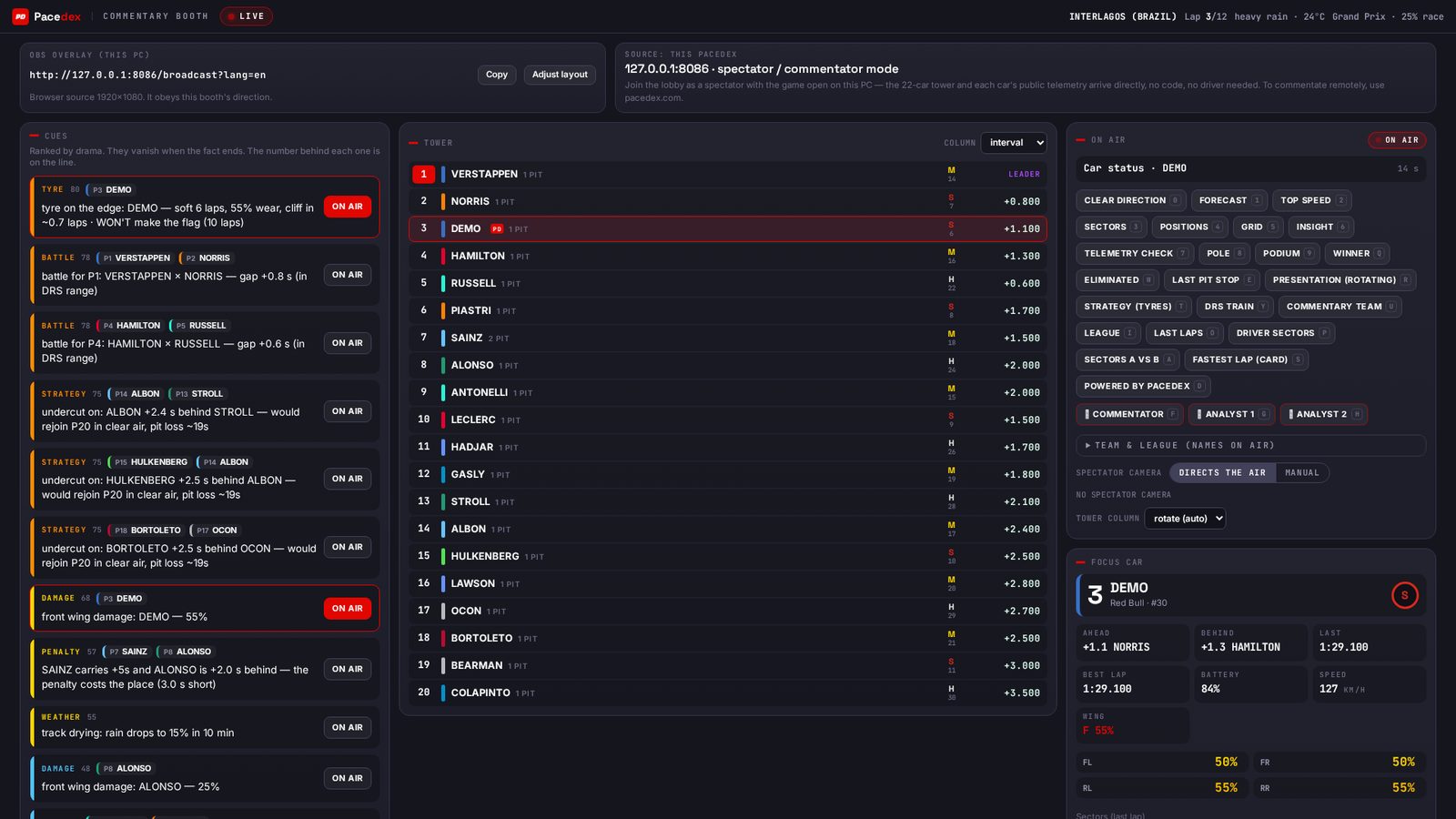 The booth in the Pacedex window — local source, spectator mode. Same page at pacedex.com/booth for a remote commentator.
Tyre at the limit, battle for a position, undercut possible, damage, penalty, track drying — each cue carries the numbers behind it and disappears when the fact does. The ones with an “on air” button already suggest the right widget.
Every on-air button puts one widget on screen — forecast, top speed, pit stop, driver profile, strategy, DRS train and 15 more. Keys 1–9, Q–P, A–L are printed on each button; Esc clears.
Pick the car in focus, pair two cars for a battle or sector comparison, pin a tower column (gap, tyre, pit stops, wear, cliff, threat…) or let it rotate.
In the local booth, every camera cut in the game puts that car's card on air for 8 s and moves the focus with it. Switch to manual whenever you want.
Commentator + two co-commentators with “who's talking” lowering only the speaker's strap; a card with the league's name and round; a 6-second Pacedex bumper at the start and at the flag (switchable off).
Battle, spotlight, strategy, pit stop, DRS train, forecast and clear are global shortcuts (Settings → Shortcuts) — an Ulanzi, Stream Deck or F13+ keys drive the show without alt-tabbing.
What goes on screen
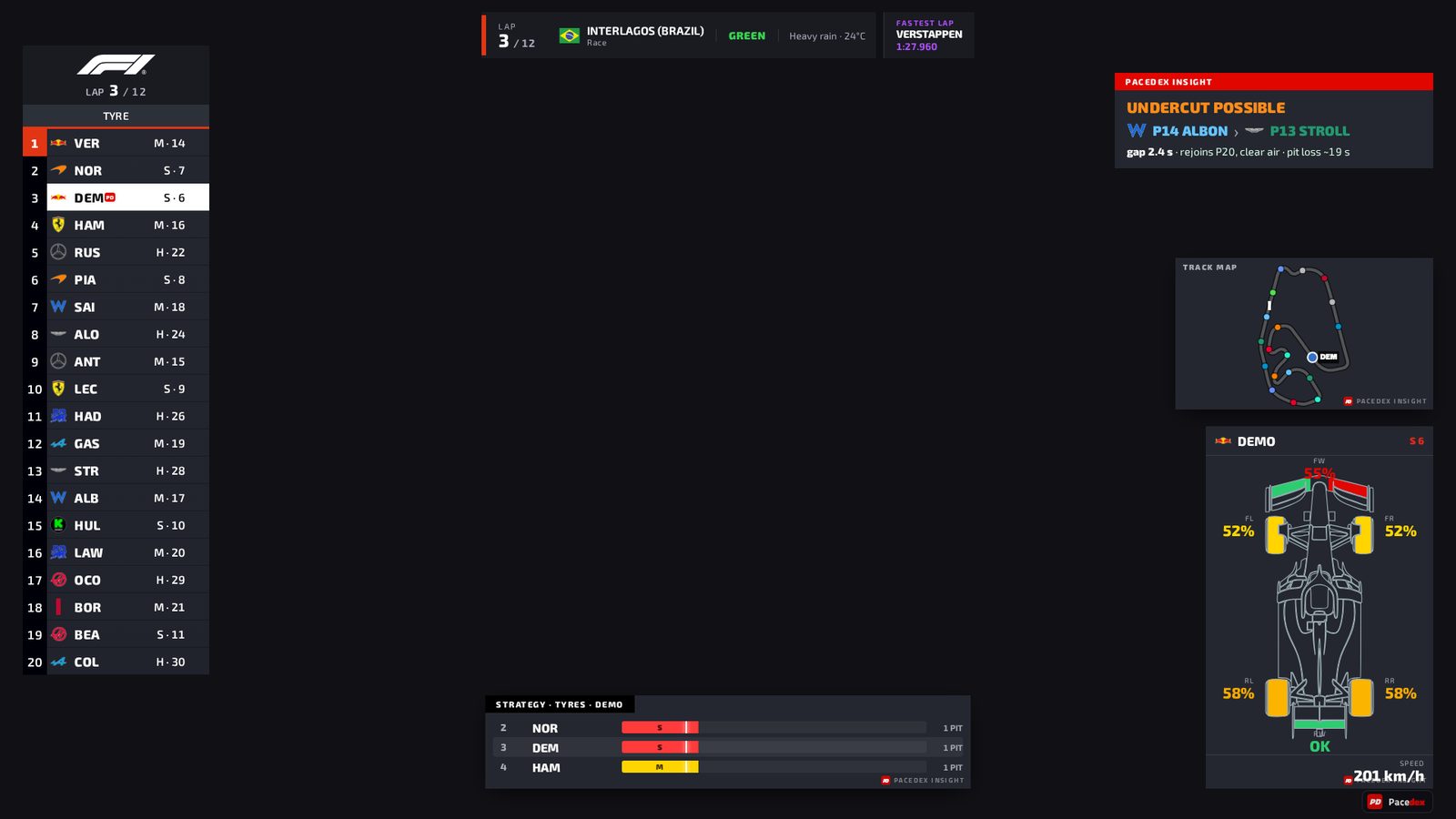 The overlay as OBS sees it — F1 TV skin, league preset. Built-in demo race (Interlagos, heavy rain).
Track, flag, session, lap and fastest lap up top. The tower of all 22 cars with a rotating column — gap, tyre, pit stops, wear, cliff, threat and 7 more, or one pinned from the booth — and the PD badge on drivers running Pacedex.
Start, fastest lap, new leader, penalty, retirement, SC/VSC/red flag and 5 more. Queued by priority and validity; under SC only race-state cards; a card never covers the tower.
Duel A×B with gap, distance in metres and “catches in ~N laps”, driver spotlight (started → now), pit stop, grid, positions lap by lap, top-5 speed trap, pole, eliminated in qualifying, winner and podium.
Tyre strategy of the car in focus and its neighbours, the DRS train, the track map, and the weather forecast — where % is chance of rain, not water on track.
Pit window and undercut for all 22 cars, sector comparison A×B (delta per sector, ideal lap), a telemetry check of who is restricted or unnamed, and a fixed fastest-lap card. Data cards carry a small “Pacedex Insight” signature.
Streaming your own races? ?preset=driver adds the HALO (speed, gear, rpm, pedals, DRS/boost, named corner), team-radio, current lap, live speed and car status of your car.
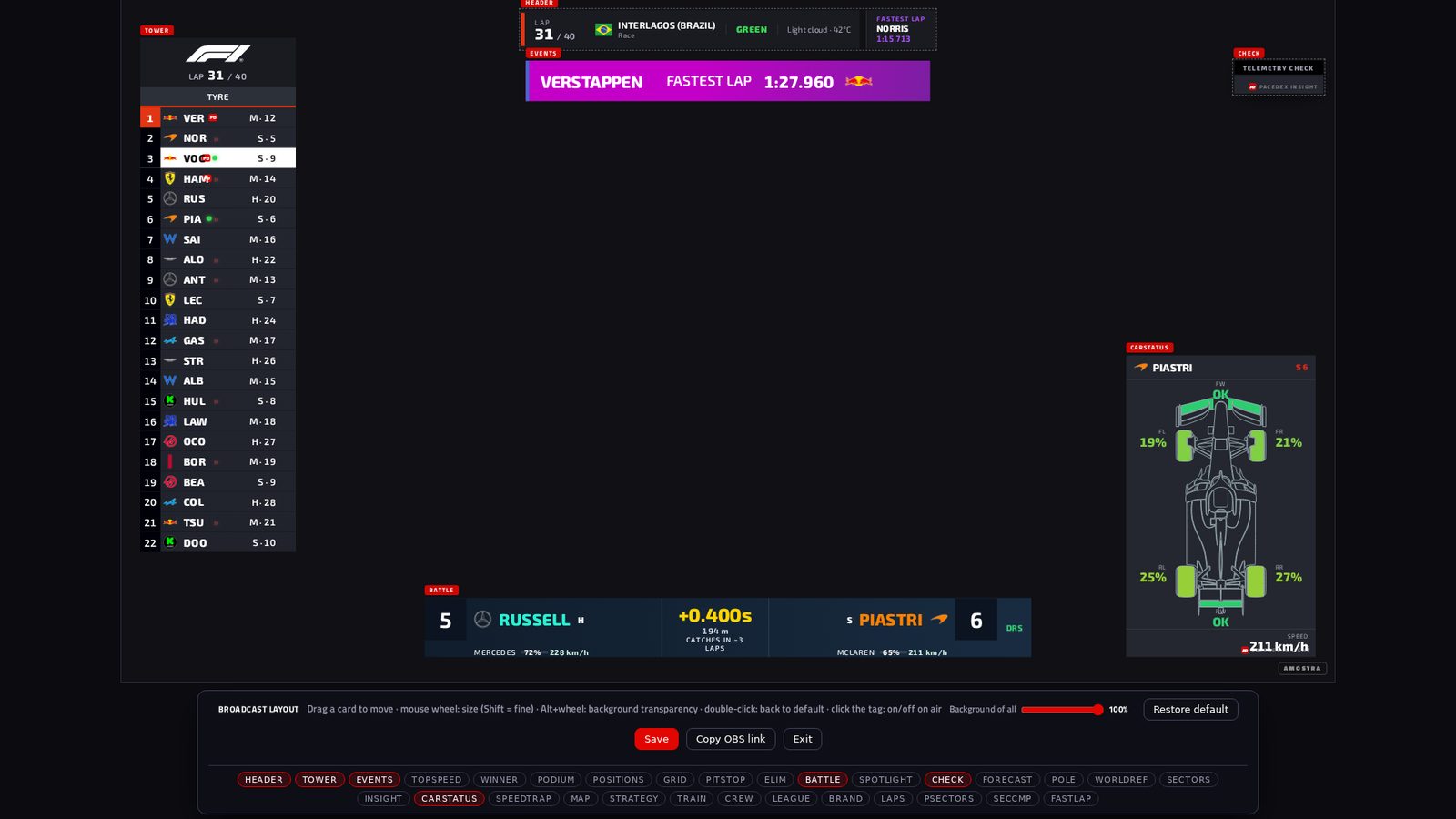 Layout editor (“Adjust layout” in the booth): drag, resize, toggle each widget — the layout is saved in the app and OBS on the same PC picks it up.
How it works
Install Pacedex and switch telemetry on
Windows, free, no account. Pacedex turns the game's UDP telemetry on in one click (or do it by hand: how to enable telemetry →). Join the league lobby — as a spectator is fine.
Add one browser source in OBS
URL 127.0.0.1:8086/broadcast, 1920 × 1080; ?skin=f1tv or ?skin=pacedex, ?preset=league or ?preset=driver in the URL. Field by field, with the OBS dialog: OBS guide below →
Open the Booth and go on air
In Pacedex: Live → Booth (full screen, or a second window for the other monitor; a tablet on the same network gets /cabine). Read the cues, click or press the key, and the overlay obeys.
Optional: bring in a remote commentator
Open the league room in Settings (or let the automatic room do it — same lobby, same room), share the code. They open pacedex.com/booth, and their OBS gets pacedex.com/live/<code>. The room keeps nothing and disappears when the session ends.
OBS, step by step
Five minutes, one browser source. The same fields exist in Streamlabs and vMix.
-
Open Pacedex and join the lobby
Start Pacedex on the streaming PC and join the league lobby in the game — as a spectator is fine. That one PC captures all 22 cars; no other driver needs to install anything.
-
In OBS: Sources → + → Browser
In your scene, click + under Sources and choose Browser. Name it whatever you like — “Pacedex overlay”, say — and click OK to open its properties.
-
URL, 1920 × 1080, two checkboxes
URL http://127.0.0.1:8086/broadcast — or the link the booth's “Copy” button gives you, already in your language — Width 1920, Height 1080. Leave “Shutdown source when not visible” unchecked (the overlay keeps its state) and tick “Refresh browser when scene becomes active”.
Source: BrowserURLhttp://127.0.0.1:8086/broadcastWidth1920Height1080Shutdown source when not visible✓Refresh browser when scene becomes activeSchematic of the OBS dialog — not a screenshot -
Transparent background: place the widgets
The page has no background — the tower and the cards sit straight over the game or the camera. Move and resize each widget in “Adjust layout” (http://127.0.0.1:8086/broadcast?edit=1, also linked from the booth), with the sample race if nobody is on track yet; OBS on the same PC picks the saved layout up.
“Adjust layout” — the same URL with ?edit=1 -
Go on air from the booth
Open Live → Booth in Pacedex: every click or key puts a widget on air and the browser source obeys. Remote commentator? Their OBS gets pacedex.com/live/<code> instead of the local URL — the same page, half a second behind.
The booth: one click, one widget on air
How it compares
Facts, not opinions — the tools people use today for an F1 25 league stream and what each one is.
F1 TV–style dashboards drawn by SimHub from the game's telemetry; some free, some by membership. They need SimHub plus the skin, and are graphics for the driver's own screen or capture. Pacedex is a standalone app and the overlay is one OBS browser source; the booth directs it live.
Free standalone overlays for F1 25 (in-game HUD or OBS). Same audience as this page. What Pacedex adds: the tower of all 22 cars enriched by every driver running it, the Commentary Booth with per-widget hotkeys, and a remote booth for a commentator without the game, from another city.
League-production suites for iRacing, some with a paid auto-director. They don't read the F1 game. Pacedex is not a full auto-director either: it has a rotating spotlight and, in the local booth, the spectator camera directing the air.
PNG/animated frames with no telemetry behind them. Every Pacedex widget is fed by the game's data; a restricted driver shows “—”, never a made-up number.
The league kit
Broadcast + Booth
F1 TV–style overlay for OBS and the commentator's booth, local or remote.
Steward mode →
Every contact between two cars freezes 12 s of both drivers' steering, pedals, speed and position. Shareable incident link.
Pit Wall →
A friend sees your car live on their phone and talks on your radio, into your headset. No lobby slot, no VPN.
Frequently asked
Does it work with Streamlabs, vMix or anything besides OBS?
Anything that takes a browser source works: OBS, Streamlabs, vMix… URL 127.0.0.1:8086/broadcast, 1920 × 1080, with Pacedex running on that PC and in the lobby (spectator is fine). The page is transparent and scales to your scene; the booth's “Copy” button gives you the exact link in your language, and the layout you saved in the app is picked up by the browser source on the same PC.
Do I need SimHub or a plugin to get F1 TV–style graphics in F1 25?
No. Pacedex is a standalone app that reads the game's own UDP telemetry; the overlay is a web page it serves to OBS. No SimHub, no plugin, no PNG pack — every widget is fed by the game's data.
Does it work with F1 24 and the F1 25 2026 Season Pack?
Yes: F1 24, F1 25 and F1 25: 2026 Season Pack, on PC, through the game's official UDP telemetry.
How do I put my league's name or logo on screen?
The league card widget shows your league's name and round, typed in the booth's Team & league panel. Logos and photos are files you drop into the app's broadcast_assets folder on the streaming PC (league badge, sponsor strip, team logos, driver photos) — the overlay on that PC picks them up. Nothing is uploaded anywhere and no “official” graphics are involved.
How far behind the game is the overlay?
On the same PC, the overlay reads the same live feed as the Pacedex panel — it moves with the game, no rendering delay beyond your browser source. Through the room (a remote booth, or pacedex.com/live/<code> in someone else's OBS) it runs about half a second behind.
Can a commentator without the game join from another city?
Yes. Open the league room from Pacedex and share the code; they open pacedex.com/booth in a browser — nothing to install — and put pacedex.com/live/<code> in their own OBS. At least one Pacedex in the lobby must be sending its telemetry to the room; what you see runs about half a second behind the game.
Is it free? Can I use it in a public Twitch or YouTube league stream?
Pacedex is free and needs no account; the overlay is yours to stream. Pacedex is an independent project, not affiliated with Formula 1, the FIA or Electronic Arts — the F1 TV–style skin is a visual language, not official graphics. Prefer a neutral look? ?skin=pacedex or ?assets=0.
Put your league on air this weekend
Free · Windows · no account. Broadcast overlay, Commentary Booth, steward mode, voice race engineer and corner-by-corner analysis for F1 24/25/26.
Download free · Windows →